
Diese Hilfe gibt es auf Deutsch und Englisch.
Students, classes & subjects
Here you manage your master data: students, school classes, subjects, and courses.
- Where to find it
- You reach it via Menu → Student, class, subject, or course management, all with the same layout.
- How to use it
- Search an entry, tap it for details, and create or edit via the plus.
- What it does for you
- Maintained once, it is available everywhere — in the timetable, grades, and lessons.
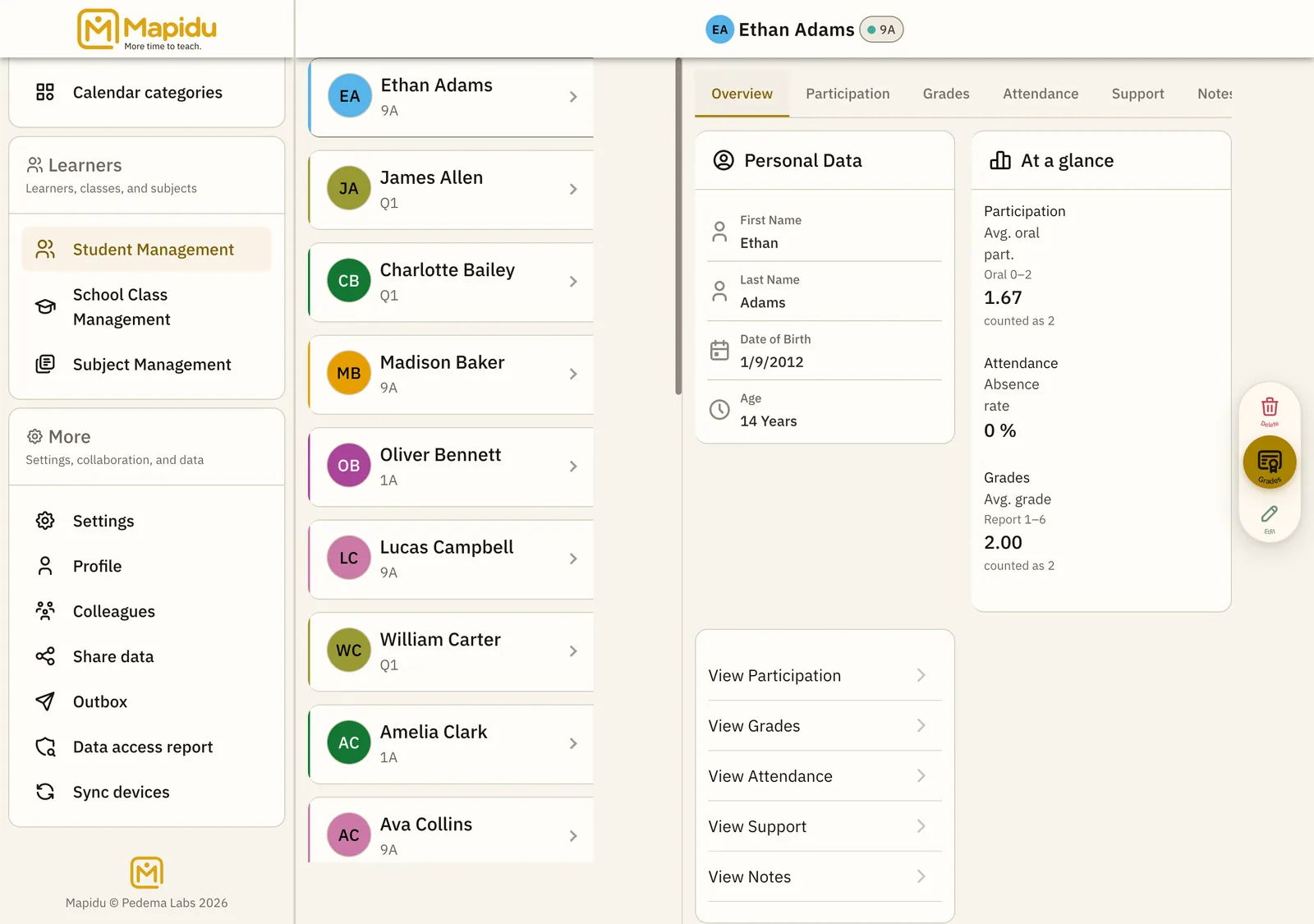
Screen elements
Search field
It filters the list by name or abbreviation. You find it above the student list. Type a few letters, and the list filters along instantly. This way you find anyone fast, even in big classes.
List
Every student with photo, name, and class. It fills the left column. Tap a row. The detail for that student then opens on the right.
Detail pane
Master data, courses, grade overview, and participation history. It appears in the right column as soon as you select someone. Scroll through the sections or tabs. This way everything that matters about a student is in one place.
Plus action
With it you create, edit, or delete entries. It sits in the centre of the action bar at the bottom. Tap the plus and choose the action you want. This way new students or changes happen without a separate screen.
Grade level or entry year — either will do
- When you create a class, grade level and entry year sit side by side. Fill in the number you know, and the other one follows.
- The entry grade is part of it: a class starting at grade 5 counts differently from one starting at grade 1.
- What gets stored is the entry year, not the grade. That is why the displayed grade is still right after 1 August — it grows along instead of going stale.
- A student may carry their own grade if they differ from the class. Without one, they follow the class.
What the class list says about graduation
- Next to each class you see the grade it is currently in — not which year it is in. Those are two different numbers: a class that started as 5a is in its fourth year and sits in grade 8.
- The class card shows both numbers, one below the other, each under its own label.
- Once a class reaches the highest grade you configured under School year, it is called “final year”. Past that it reads “graduated” and carries no grade any more.
- That highest grade is currently **one** setting for you, not one per school form. If you teach at a primary school and a Gymnasium, only one of the two gets the right final year — the grade itself is correct in both cases.