
Diese Hilfe gibt es auf Deutsch und Englisch.
Lesson conduct
Your in-lesson view places attendance, participation, notes, and the lesson plan side by side.
- Where to find it
- You reach it from the Today dashboard via "Conduct lesson", or by tapping a lesson in the timetable.
- How to use it
- There you tap students for attendance, log participation with quick actions, and switch phases when needed.
- What it does for you
- This way you document mid-lesson — with no catching up in the evening.
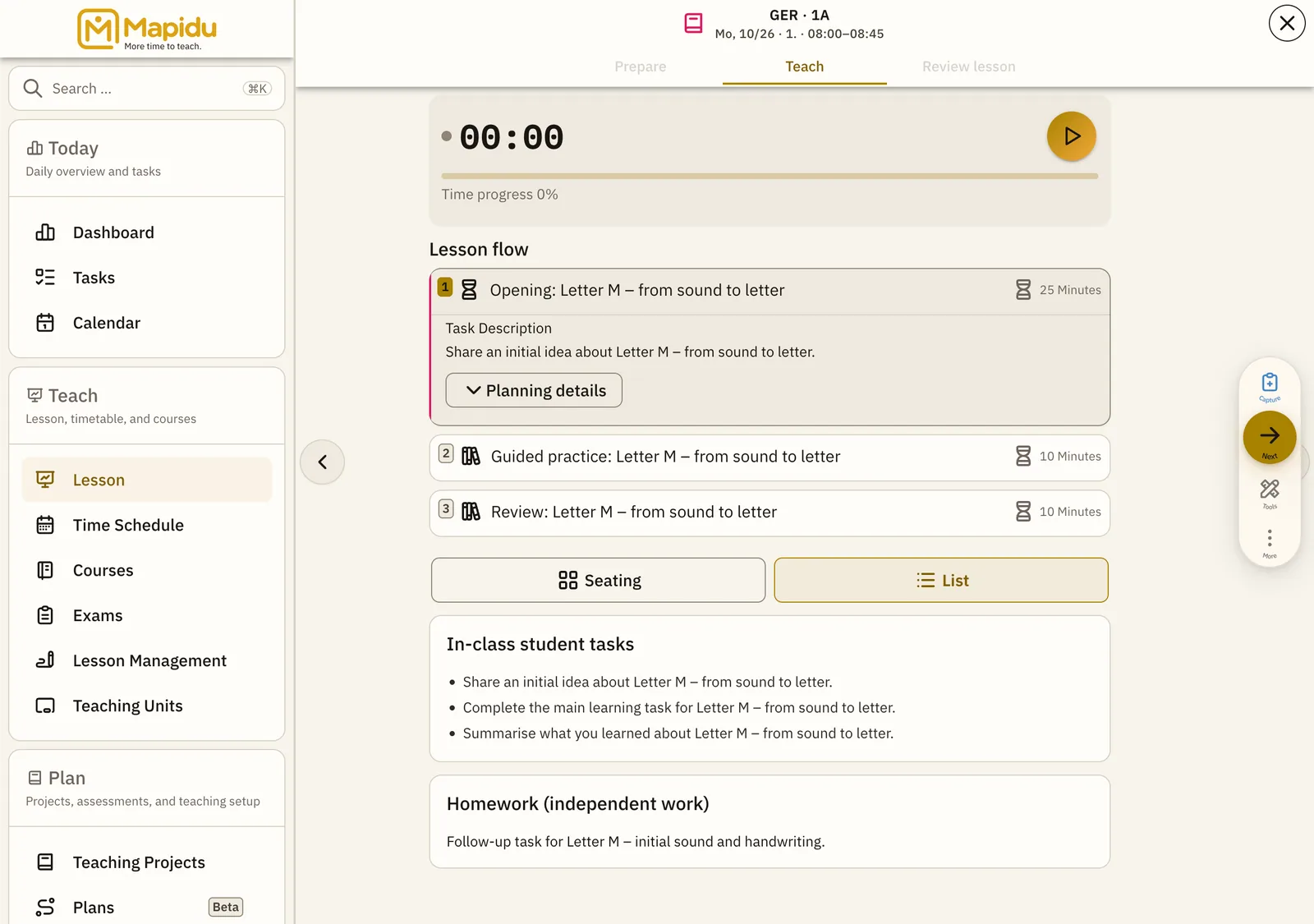
Screen elements
Attendance list
Every student in the lesson, each with a photo or initials. It sits in the left column of lesson conduct. Tap a name to mark an absence or lateness. The attendance then lands straight in the student record.
Now card
It shows the step from your teaching project that is current right now. You find it centred and easy to see. Read it and use the arrows to move to the next phase. This way you and the class always know what is coming next.
Phase timeline
Every planned step of the lesson, in order. It lies below or beside the Now card. Tap a phase to set it active. This way the thread holds even when you improvise.
Quick actions
Shortcuts for participation, grades, and notes. They sit on the student row or the lesson entry. Pick a student, tap the action, and confirm a value or note. A few taps instead of menu hopping — ideal mid-lesson.