
Diese Hilfe gibt es auf Deutsch und Englisch.
Seating plan
The seating plan shows your course the way it sits in the room — and is at the same time the fastest surface for attendance and participation.
- Where to find it
- Create layouts in Settings; open the seating plan in the course view and in the lesson.
- How to use it
- First place the room's tables as a layout, then put a seat assignment for each course on top of it.
- What it does for you
- A layout describes the room, not the class — you use the same one for every course taught there.
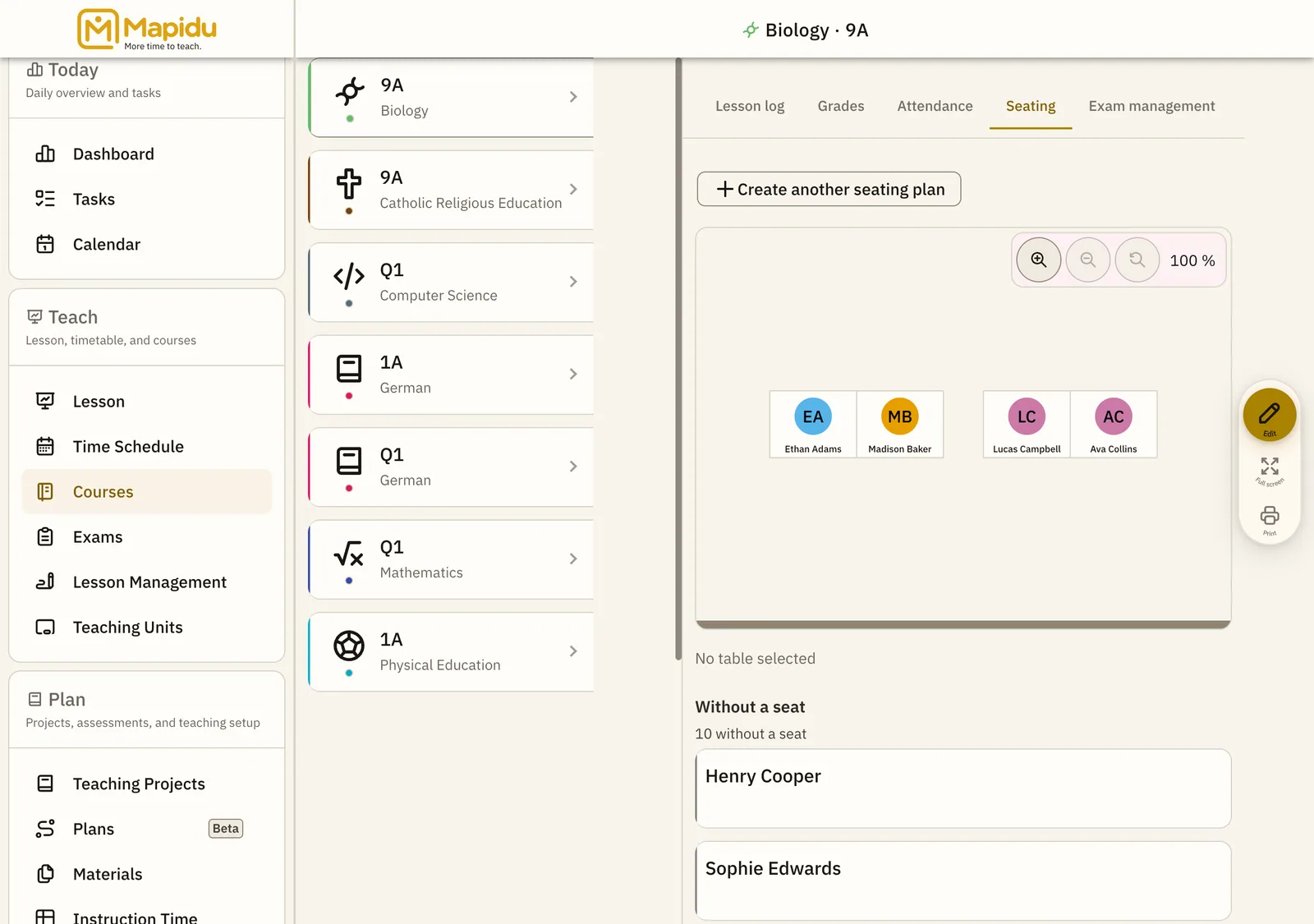
Three steps to a seating plan
- Create a layout Settings → Room layouts → "Create layout". Add single desks, double desks, and furniture; drag to move, Shift and arrow keys to rotate.
- Seat the course Course view → seating plan → choose a layout. Assign free seats, change them one at a time, or reseat the whole plan.
- Use it in the lesson Open the seating plan during the lesson and work right at the seat instead of searching a list of names.
What a seat offers
- Mark absent — one tap, without the detour through the list
- Record participation
- Record a grade
- Photo and colour marker for recognition, especially in new courses
- Several seating plans per course, for group work and for exam seating