
Diese Hilfe gibt es auf Deutsch und Englisch.
Colleagues
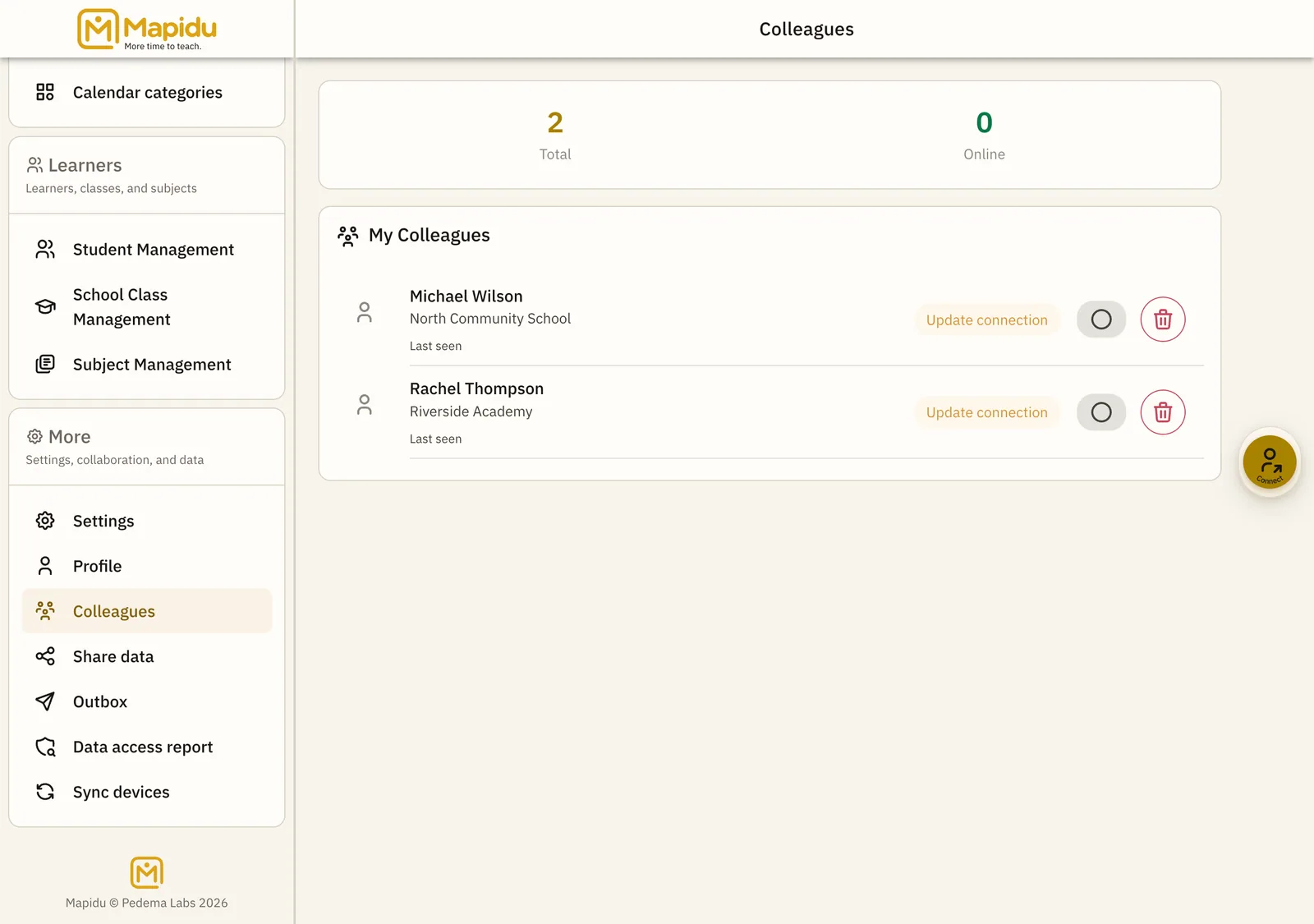
Connect with other teachers — the guided wizard exchanges Comm and Data keys once via QR, without sharing passwords.
- Where to find it
- Menu → Colleagues → plus (connection wizard).
- How to use it
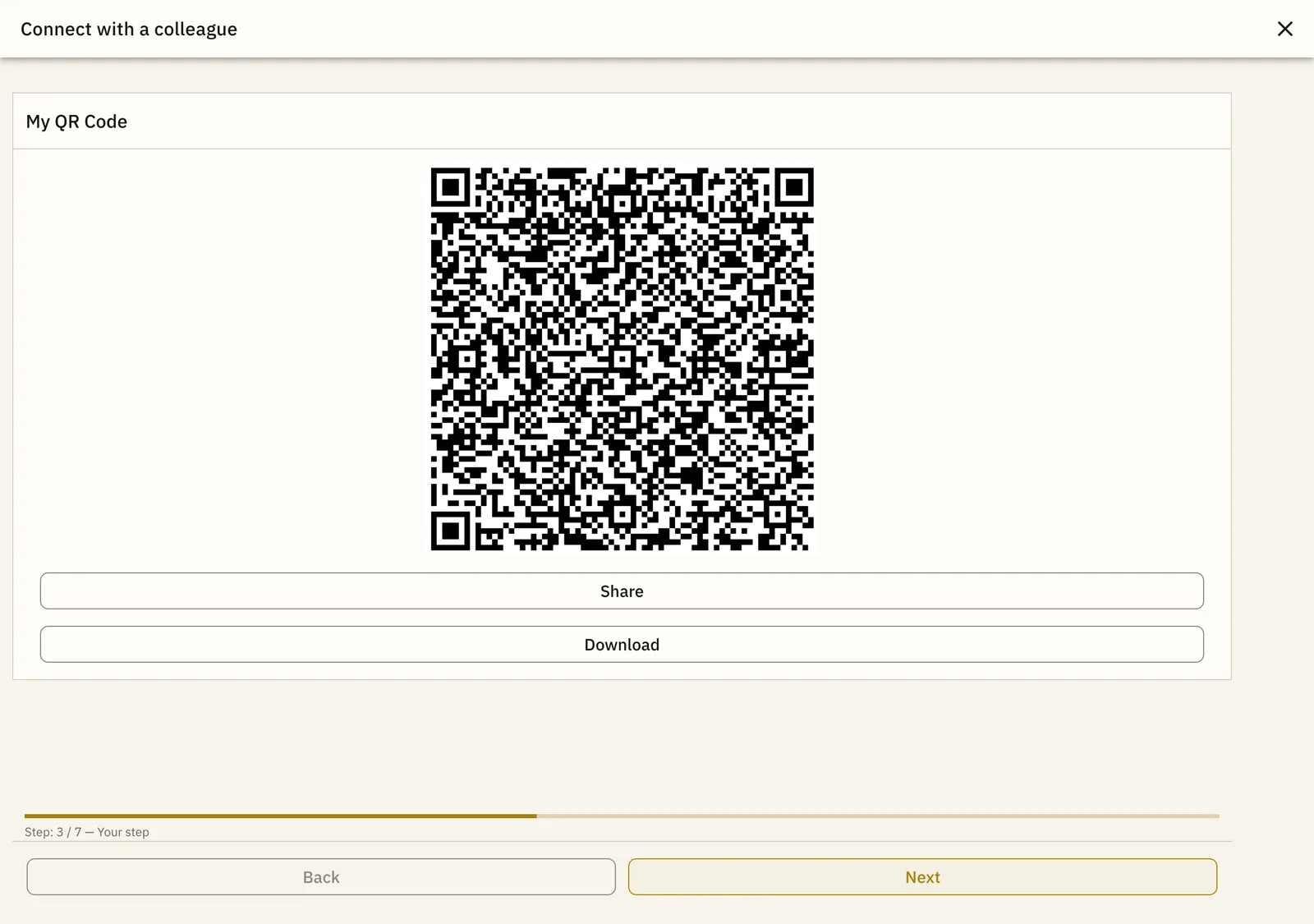
- Choose "I invite" or "I am invited", show your code or scan theirs; mirror steps explain what happens on the other side.
- What it does for you
- The contact appears in your list — with complete trust you can send data deliberately (see chapter Share data).
Adding a contact
- Start wizard Colleagues → plus or "Add first colleague".
- Pick role "I invite" (show code) or "I am invited" (scan).
- Exchange QR Display your code or start the camera — Mapidu checks fingerprints and stores the contact encrypted locally.
- Done Optionally scan each other; then "Share data now" or later via Menu → Share data.
What you see
- Contact name and optional school
- Update connection chip when the data key is missing
- Online status when both are reachable
- Remove any time via trash or detail view
Important: the QR exchange transfers communication and data keys — not your app PIN or master key. What you actually share, you start deliberately in the share flow or via the sync mailbox.