
Diese Hilfe gibt es auf Deutsch und Englisch.
Grading session
A grading session is a fast pass through every student in a course — ideal after a test or oral round.
- Where to find it
- You start it from grade management when a course is selected on the left.
- How to use it
- Tap "Start grading", work through student by student, and save each grade with the layout from Settings.
- What it does for you
- You capture a whole class in minutes — without reopening the form each time. The active entry layout is set under Settings → Grading systems (see "Grading systems & entry layout") — the session uses it automatically.
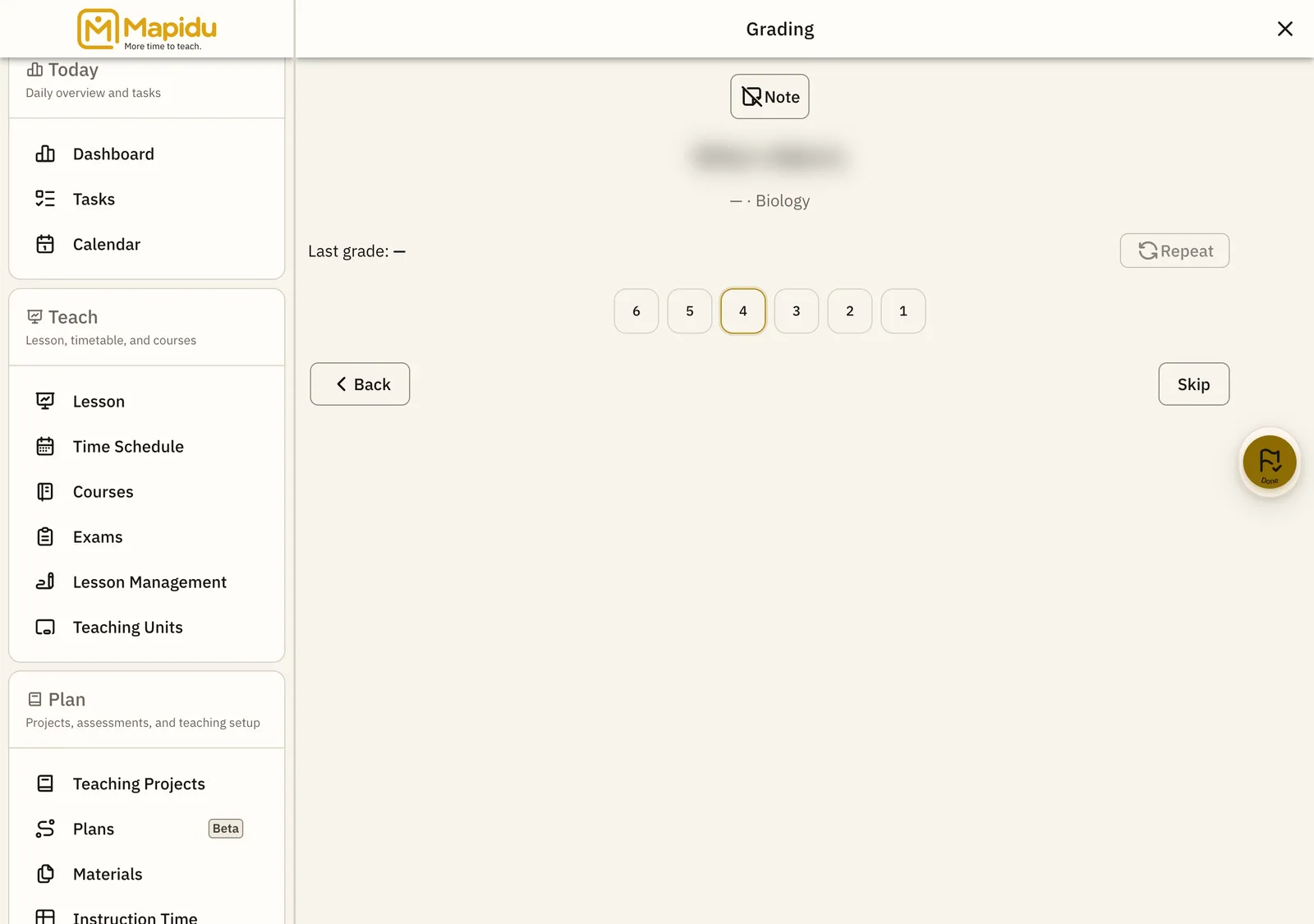
Prepare and enter grades
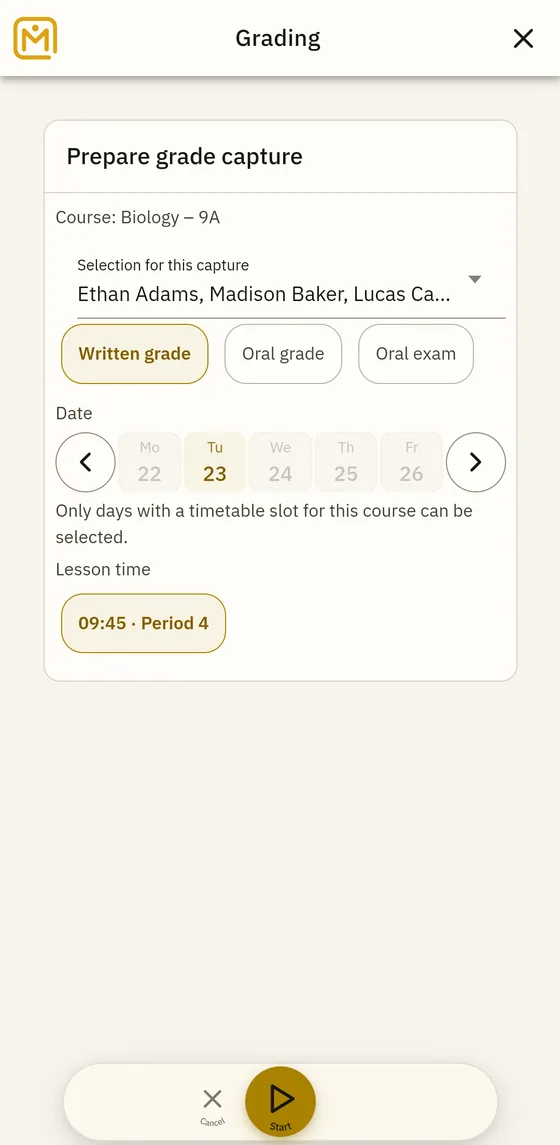
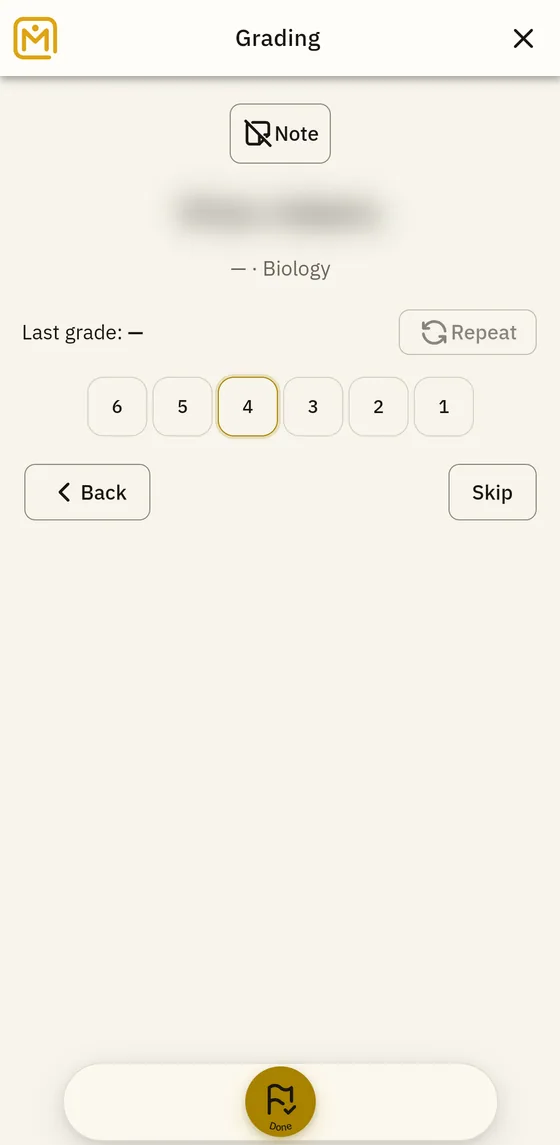
On a phone, the session has two clear stages: choose grade type and date, then grade one student after another.
Workflow
- Pick a course Open grade management, switch to "Course" at the top, and tap the course you want.
- Start session In the detail pane choose "Start grading" — Mapidu opens the session view.
- Enter grades Set a grade per student and confirm; use Next or swipe to move on.
- Finish End the session — all grades appear immediately in the course and student history.
Tips
- Try the layout first: Settings → Grading systems → entry layout
- Oral and written scales are separate — check the preview before your first session
- From the dashboard (Extended): quick start for today's courses when you grade on the go